Translate

Kamis, 16 Oktober 2014

The following Failure occurred while trying to use the product by: Code: 0x80070005 Description: Access is denied

Invalid Product key
The following Failure occurred while trying to use the product by: Code: 0x80070005 Description: Access is denied.


  • Probably if you have facing an issue like this one if you try run the command (even using Administrator account) "slmgr.vbs /dlv" on the server the activation error will show you the following message:


  • For this case the best way is use one generic key to try install it and check if the Windows recognize it. After activating with that generic key we will be able to install the correct one to activate the Window properly.


        C:\Windows\System32>cscript slmgr.vbs /ipk 489J6-VHDMP-X63PK-3K798-CPX3Y
             Microsoft (R) Windows Script Host Version 5.8
             Copyright (C) Microsoft Corporation. All rights reserved.


              Error: 0x80070005 Access denied: the requested action requires elevated privileges


Actions Taken
==============


  • When attempting to activate any type of licensing (MAK or KMS client) received the following error message to permissions issues.
  • Validated using RSOP.MSC the path "Computer Configuration/Policies/Windows Settings/Security Settings/System Services" and service "Plug and Play" has been set as "Not Defined".
  • Checked the permission within the Regedit to the following key "HKEY_USERS\S-1-5-20" and the local account 'Network Service' has Full Control permission.


Solution
=============


  • Added to Full Control permission to the 'Everyone' account in the following folders
    • "C:\users\default\AppData\Roaming\Microsoft"
    • "C:\Windows\serviceprofiles\networkservice\appdata\roaming\microsoft"


  • Restarted the service "Software Protection" and and made Activation of Windows Server with a generic key as below:


C:\Windows\System32>cscript slmgr.vbs /ipk 489J6-VHDMP-X63PK-3K798-CPX3Y
                                     Microsoft (R) Windows Script Host Version 5.8
                                     Copyright (C) Microsoft Corporation. All rights reserved.


Installed product key 489J6-VHDMP-X63PK-3K798-CPX3Y successfully.


  • Started the "Activate Now" Wizard. Typed the correct license successfully.
  • Double check the license thru command "cscript slgmr.vbs /dlv"


C:\Windows\System32>cscript slmgr.vbs /dlv
                                    Microsoft (R) Windows Script Host Version 5.8
Copyright (C) Microsoft Corporation. All rights reserved.
Software licensing service version: 6.1.7600.16385
Name: Windows Server(R), ServerEnterprise edition
Description: Windows Operating System - Windows Server(R), VOLUME_MAK_B channel
Partial Product Key: G7X78
License Status: Licensed
Remaining Windows rearm count: 3


Cause
=========


  • This issue was related to insufficient permissions on the folders mentioned above.

Senin, 22 September 2014

Operation could not be completed (error 0x00000709)

Operation could not be completed (error 0x00000709) Double check the printer name and make sure that the printer is connected to the network

“Operation could not be completed (error 0x00000709) Double check the printer name and make sure that the printer is connected to the network”

SOLUTION:
  • Open Registry editor by typing REGEDIT in the RUN Prompt
image
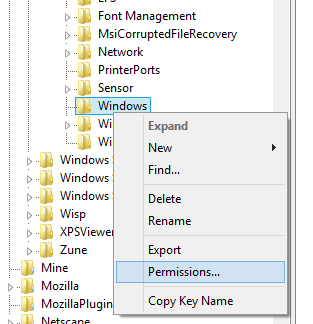
  • Traverse to HKEY_CURRENT_USER\Software\Microsoft\Windows NT\CurrentVersion\Windows
  • Right Click the Windows key and click Permissions…
image
  • Select Allow on Full Control permission and click OK
image
  • Close the Registry Editor and restart PC.

Minggu, 31 Agustus 2014

Error message when you try to open or save an e-mail attachment in Outlook: "Cannot create file"

To resolve this issue, force Outlook to use a specific folder for temporary files. Modify the relevant Windows Registry key as follows:

Outlook 2000

If you are using Outlook 2000, follow these steps:
  1. Start Registry Editor.
  2. Locate and then click the following registry key:
    HKEY_CURRENT_USER\Software\Microsoft\Office\9.0\Outlook\Security\OutlookSecureTempFolder

    Note You may have to manually create this registry key if it does not already exist on the system.

    If Outlook is installed on a terminal server, use the following registry key:
    HKEY_LOCAL_MACHINE\SOFTWARE\Microsoft\Windows NT\CurrentVersion\Terminal Server\Install\Software\MICROSOFT\Office\9.0\Outlook\SECURITY\OutlookSecureTempFolder
  3. On the Edit menu, click Modify, and then add the following registry value:
    Value data: Path and name of the folder that you want to use
  4. Exit Registry Editor.

Outlook 2003

If you are using Outlook 2003, follow these steps:
  1. Click My Computer, and then double-click drive C.
  2. On the File menu, click New, and then click Folder.
  3. Name the folder temp0.
  4. Click Start, click Run, type regedit, and then click OK.
  5. Locate and then click the following registry key:
    HKEY_CURRENT_USER\Software\Microsoft\Office\11.0\Outlook\Security\
  6. In the right pane, double-click OutlookSecureTempFolder.
  7. In the Value Data field, type C:\temp0\ and then click OK.
  8. Exit Registry Editor.
  9. Restart the computer.

Outlook 2010


If you are using Outlook 2010, follow these steps:
  1. Click My Computer, and then double-click drive C.
  2. On the File menu, click New, and then click Folder.
  3. Name the folder temp0.
  4. Click Start, click Run, type regedit, and then click OK.
  5. Locate and then click the following registry key:
    HKEY_CURRENT_USER\Software\Microsoft\Office\14.0\Outlook\Security\
  6. In the right pane, double-click OutlookSecureTempFolder.
  7. In the Value Data field, type C:\temp0\ and then click OK.
  8. Exit Registry Editor.
  9. Restart the computer.

Minggu, 17 Agustus 2014

the group policy client service failed the logon

- Restart the computer.
- Login with an administrative account (not the account that is having the problem).
- Rename the ntuser.dat file (to something like ntuser.old1) for the user that is having the problem (C:\Users\%username%\ntuser.dat).
- Log off and login with the user account, a temporary profile should be created.
- Log off and login with the previous administrative account.
- Open REGEDIT and go to: HKEY_LOCAL_MACHINE\SOFTWARE\Microsoft\Windows NT\CurrentVersion\ProfileList
There should be a profile under that key that has .bak after the SID number (e.g. S-1-5-21-245852018-2450494779-245611912-1000.bak).
- Select the key and check the ProfileImagePath string value relates to the correct user then delete the SID key (that ends with .bak).
- Restart and login with the affected user account, they should be able to login now.